
The short answer is that Google can use more than the edit you saved
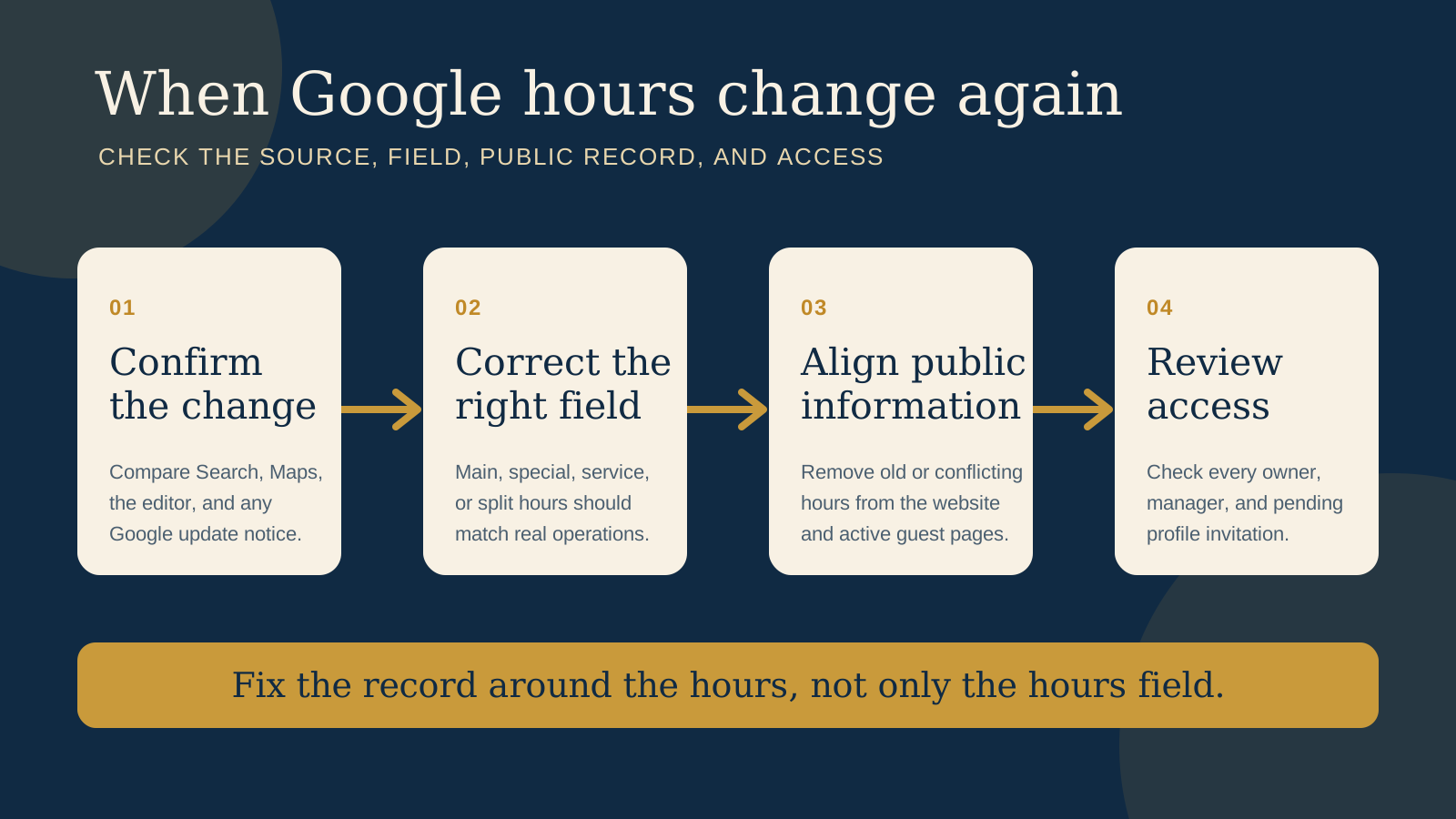
Google says Business Profile information may be updated from sources such as user reports and licensed content. It also says a suggested user edit may be published after four days if the business does not respond and the suggestion is supported by other public information, such as the business website. Some suggested edits can be applied without prior review when Google says a change is needed to meet policy guidelines.
That does not mean every repeated change came from a customer or from your website. It means you should diagnose the visible update before saving the same hours again. The useful question is not only “What should the hours be?” It is also “Which field changed, what evidence is public, and who can edit this profile?”
First, confirm what actually changed
Check the public Business Profile in both Google Search and Google Maps. Then open the profile editor while signed in to the account that manages the venue. Google says a notification appears at the top of the profile when there are Google updates, and blue text in the editor marks information changed by Google. The public view matters because a saved edit can still be under review before it appears live.
Record the facts before making another correction:
- The profile URL and exact venue location.
- The hours shown publicly in Search and Maps.
- The main hours, special hours, and More hours shown in the editor.
- Any Google update notification, including the field it names.
- The date and time of the check, plus screenshots of the public view and editor.
This small record helps you distinguish a changed main schedule from a holiday exception, a service specific schedule, or a display that has not caught up with the latest edit. It also gives you a clean timeline if you later contact support.
Google updates and people with access are the confirmed places to check
Google officially names several routes through which profile information can change. It gathers information from user reports and licensed content. It can notify an owner about certain suggested user edits, and it can compare a suggestion with public information. Google also reviews changes made by the business before updating them live.
There is another ordinary possibility: an owner or manager changed the hours. Google says both owners and managers can edit main business information such as hours and address. A former agency, previous manager, reservation consultant, or staff account may still have access even when the current owner assumes only one person controls the profile.
Do not turn these possibilities into accusations. A public edit does not identify a culprit by itself. Check the Google update notice, the profile fields, People and access, and the current public evidence. Work from what you can see.
Use the field that matches the real operating schedule
A correct number in the wrong field still creates a confusing profile. Google separates normal weekly hours, brief exceptions, and hours for particular services.
| Real situation | Google field | What to check |
|---|---|---|
| Normal week | Main hours | Use the regular customer facing schedule. For a restaurant, Google says to use dine in hours when dine in is available. |
| Holiday, event, or brief exception | Special hours | Use date specific hours so the normal week does not need to change. |
| Delivery, takeout, pickup, or another distinct service | More hours | Keep the service schedule separate from the main customer facing schedule. |
| Break between services on the same day | Two main hour entries | Enter each open period separately rather than showing the venue open through the break. |
For temporary changes, Google says special hours can be used when a business adjusts its schedule or stays closed for up to six days in a row. Its separate guidance says a closure of seven days or longer, or one with no known end, should use temporarily closed. Our guide to restaurant holiday hours covers that temporary workflow in more detail.
Make the website and other public information tell the same story
Google specifically says publicly available information, such as a business website, can support a suggested edit. If the website footer says 7 AM, the contact page says 8 AM, and the profile says 7:30 AM, another correction in the profile does not resolve the underlying conflict.
Start with the pages the venue controls. Check the homepage, contact or visit page, location page, footer, menu page, booking page, and any structured business data. For multiple venues, make sure each location has its own correct hours and URL. Remove old notices rather than leaving a holiday banner or seasonal schedule where it can look current.
Then review other active public surfaces that guests use, such as reservation, ordering, tourism, or directory pages. Google does not promise that changing every third party page will prevent a future update. This is a practical consistency check, not a guaranteed fix. It reduces contradictory information for guests and gives the current schedule a clearer public record.
Review People and access without sharing passwords
Open Business Profile settings, then People and access. Confirm every owner, manager, and pending invitation. Google says managers can edit main business information, including hours, so access should match current responsibilities.
- Keep a long term venue controlled account as an owner.
- Give each person their own Google Account rather than sharing one password.
- Remove former staff and suppliers when their work has ended.
- Cancel pending invitations that no longer have a clear purpose.
- Write down who owns hours updates and which schedule they should use.
An access review cannot explain every Google update, but it closes a separate route through which a well meaning person can publish an old schedule.
Boutique stays should not force reception hours into a hotel profile
Google's Business Profile guidelines say indoor lodging, including hotels and motels, should not provide business hours. If your boutique stay falls into that category, repeatedly adding reception or check in times as main business hours is not the right setup.
Put reception, arrival, and check in information on the property website and in the booking journey where guests need it. A separately represented restaurant, cafe, or bar inside a hotel can have its own Business Profile and its own dining hours. Google lists those co located hospitality businesses as profiles that can be separate when they are genuinely distinct.
Use one clean correction plan instead of repeating isolated edits
- Capture the current state: Save the public hours, editor fields, notifications, profile URL, and screenshots.
- Confirm the approved schedule: Write the real normal week, any service breaks, current special dates, and separate service hours in one place.
- Correct the website first: Remove conflicts across visible pages, location details, and structured data.
- Edit the correct profile fields: Use main hours, special hours, or More hours according to the real schedule.
- Review access: Confirm that every owner and manager is current and knows who owns the schedule.
- Check the public result: Look at Search and Maps after Google has processed the edit. Record what appears rather than assuming the save screen is the guest view.
- Respond to notices: If Google sends a suggested edit for review, accept or reject it based on the current schedule. Google says some review requests have a four day response window.
Keep the evidence factual. Do not ask customers to submit matching edits, create a duplicate profile, or add hours that are broader than the service guests can actually receive.
Ask Google for help when a documented correction still will not hold
If the public hours keep changing after the correct fields, public website, and access list agree, use the contact option in Google Business Profile Help. Provide the profile URL, the correct schedule, screenshots, the date of each change, any Google update notification, and the steps already completed. Explain the pattern without guessing who caused it.
Google controls the review and support options available for each profile. No outside party can promise a particular correction time or permanent result. Keep the venue's own website accurate while the profile issue is being reviewed, so guests still have a clear official place to check.
Start with the free Restaurant Website Quick Score
The free Restaurant Website Quick Score checks nine guest essentials and returns three practical priorities. Use it to spot hours that are hard to find, location details that do not agree, or booking and menu paths that make the venue harder to verify.
Want someone to check the website side of the mismatch?
The US$35 Website Check reviews one independent restaurant or cafe website for mobile experience, menu access, booking paths, essential venue details, visual clarity, and search basics. It does not manage or guarantee changes to a Google Business Profile, but it can identify conflicting or unclear website information that should be corrected at the source.
Get the US$35 Website CheckSources
- Google Business Profile Help, Understand Google updates on your Business Profile
- Google Business Profile Help, Edit your business hours
- Google Business Profile Help, How to set Special hours
- Google Business Profile Help, Guidelines for representing your business on Google
- Google Business Profile Help, Edit your Business Profile
- Google Business Profile Help, Manage your Business Profile owners and managers
Official Google guidance checked October 17, 2026. Profile features and review routes can vary by business, region, category, and device. This is practical website and profile guidance, not a guarantee of a Google update outcome.