
The short answer is one schedule, several surfaces, and two checks
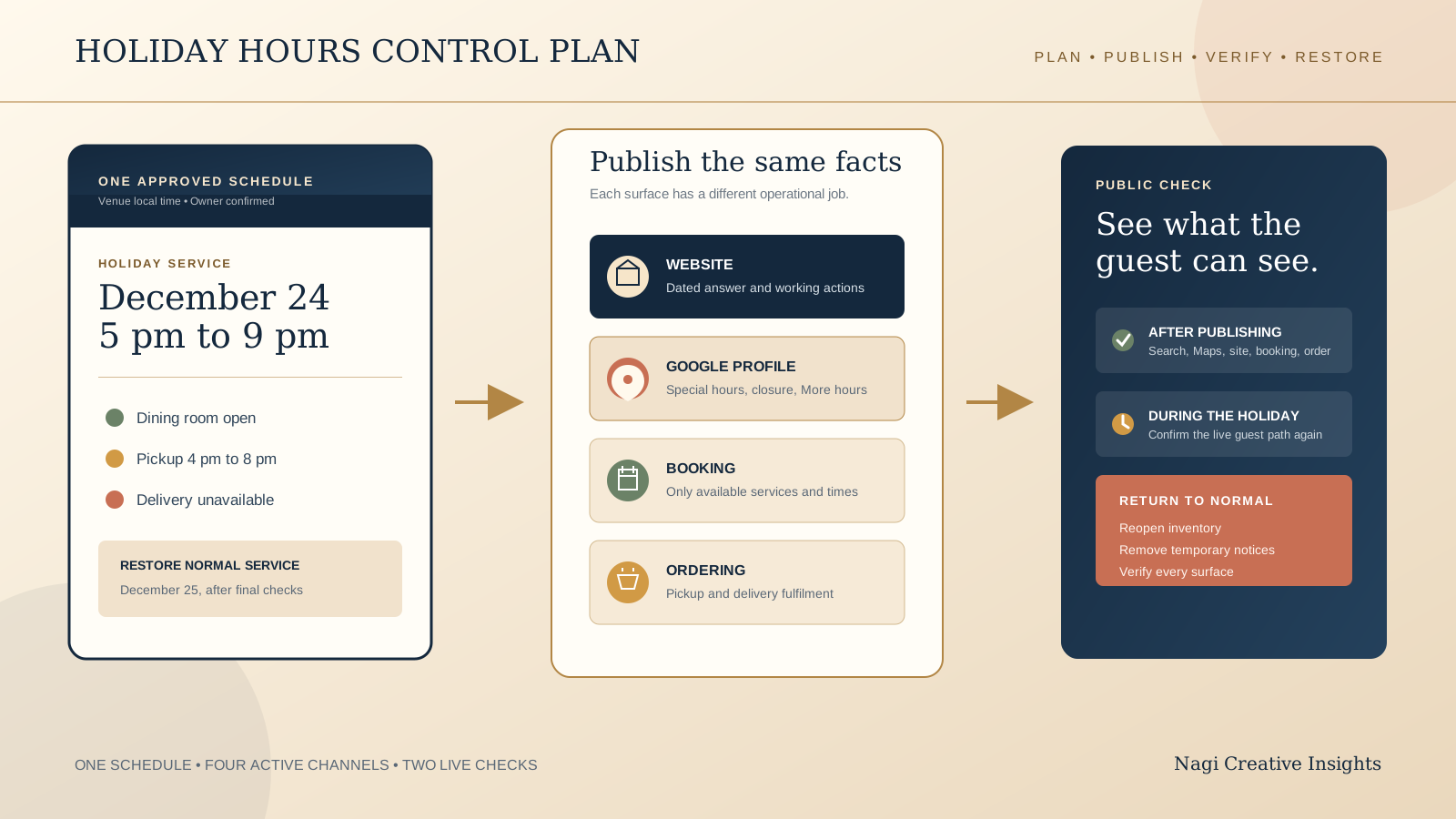
A holiday hours update is not finished when one field has changed. Guests can arrive through your homepage, a location page, Google Search, Google Maps, a reservation service, an ordering link, or a delivery app. Each surface needs to tell the same practical story: the date, whether the venue is open or closed, the hours for each available service, and what the guest can do next.
Begin with a single approved schedule. Use it to update the owned website, the Google Business Profile, and the systems that can accept a booking or order. Check the public result once the edits are live. Check it again during the holiday period, when stale buttons and mismatched times are easiest to spot. Add the return to normal to the plan before the holiday begins.
This is a coordination task, not a search trick. Accurate hours help a guest decide whether to travel, reserve, or order. Consistent information also matters because Google says Business Profile information can come from several sources, including the business, public web content such as the official website, third parties, users, and Google’s own interactions with a place.
Choose special hours or temporarily closed from the length of the closure
Google draws a clear boundary. If the business will be closed for seven days or less, use special hours. If it will be closed for more than seven days, closed for the off season, or closed indefinitely, use the temporarily closed status. Do not use permanently closed for a holiday break.
That distinction should shape the website message too. A one day closure can be a dated notice beside the usual hours. A longer closure needs a prominent reopening message, a clear range of dates, and a review of every action that could still promise service while the venue is closed.
- Open with changed hours: Keep the venue open and publish the exact holiday hours for each affected date.
- Closed for seven days or less: Mark each affected date closed in special hours and show the same dates on the website.
- Closed for more than seven days: Use temporarily closed on the profile and explain the closure and expected return on the website.
- Seasonal venue in the off season: Use temporarily closed, then restore regular hours when the season begins again.
For a boutique stay, be careful about which profile you are editing. Google’s guidelines say indoor lodging such as hotels and motels should not provide business hours. A separately represented restaurant, cafe, or bar inside the property can have its own profile and its own dining hours. The property website can still explain reception, breakfast, restaurant, and booking availability in the places where guests expect to find those details.
Write one dated source sheet before opening any dashboard
Make a small control sheet that everyone uses. Do not compose a slightly different announcement inside each platform. The sheet can be a document, spreadsheet, or task, but it should have one owner and one approved version.
- Date and time zone: Write the full date, weekday, opening time, closing time, and the venue’s local time zone where confusion is possible.
- Service by service: Separate dine in, takeaway, pickup, delivery, breakfast, bar, room service, and any other active service.
- Last acceptance time: Record when the kitchen, booking system, or ordering channel stops accepting requests if that differs from the public closing time.
- Links and actions: List every page, profile, booking calendar, order provider, delivery listing, phone message, and social profile that needs review.
- Publish and restore owners: Name who approves the schedule, who updates each channel, who checks it live, and who removes temporary copy.
- Evidence: Add a checked time or screenshot after each public surface has been verified.
Use guest language in the sheet. “Closed on December 25. Open December 26 from 5 pm to 10 pm” is safer than “holiday schedule applies.” When services differ, say so directly: “Dining room open 5 pm to 9 pm. Pickup available 4 pm to 8 pm. Delivery unavailable.”
Put the dated answer on the website where a guest is deciding
The website is the owned version of the message. Update the normal hours block or location page first, then add a short dated notice where it helps rather than covering the whole site with an announcement.
For a restaurant or cafe, the useful placements are usually the homepage, contact or visit page, footer hours, and the page that leads to booking or ordering. A boutique stay with a public restaurant should update the restaurant page and any dining call to action. If the property itself remains bookable while the restaurant closes, make that distinction explicit.
- Use full dates instead of “today,” “tomorrow,” or “this weekend.”
- Keep regular hours visible when helpful, but label holiday exceptions clearly.
- Link the notice to the relevant menu, booking, order, directions, or contact path.
- Pause or relabel a button if its destination can no longer fulfil the action.
- Check the phone layout, sticky buttons, footer, and any location selector.
- Set a removal date for the temporary banner or notice.
A holiday pop up is optional. Accurate page content is not. Guests who dismiss a banner, enter on an interior page, or return later still need the correct schedule.
Use primary hours for dining, and More hours for distinct services
For restaurants, Google says the primary hours should be the hours when diners can sit down and dine in the restaurant. If dine in is not available, the guidance moves next to takeout, then drive through, and finally delivery as a last resort. Do not stretch the primary hours to cover a delivery window that begins earlier or ends later than the dining room.
Use special hours for the affected holiday dates. Google also offers More hours for specific services such as delivery, takeaway, drive through, and pickup. These fields let guests see that the dining room and another service have different schedules without forcing both into one broad range.
After saving, review the profile as a guest in Search and Maps. Google reviews edits before they appear, and profile management features can differ between Search, Maps, and device types. Confirm the actual date label, open or closed state, and service hours rather than treating the save confirmation as the end of the task.
Review the website and menu links while you are there. Google’s restaurant setup guide includes hours, closure, order providers, reservation providers, and menu links as separate pieces of the profile. A correct hours field cannot rescue an order link that still accepts an unavailable slot.
Make booking and ordering availability agree with the public promise
The guest should not be able to book a table or place an order for a period the venue says is closed. Update capacity and fulfilment settings in the operational system, not only the wording around the button.
- Reservations: Close unavailable services and time slots. Check event sittings, deposits, waitlists, and cancellation alerts separately.
- Owned ordering: Set pickup and delivery availability, preparation cutoffs, fulfilment areas, and any holiday menu limits.
- Third party ordering: Check each active provider and each location. Do not assume one platform’s schedule updates another.
- Phone and messages: Update the recorded greeting or automatic reply if callers rely on it for current hours.
- Social links: A post can support the update, but it should point back to a current page and should not be the only record of the schedule.
Test from the public side. Select a holiday date in the reservation calendar. Begin a pickup order. Follow the Google profile’s booking, order, website, and menu links. Stop before placing a real order or reservation, but go far enough to see whether the venue, date, service, and available times are correct.
Keep LocalBusiness structured data accurate, but do not treat it as a control panel
LocalBusiness structured data can give Google information about a business, including opening hours. For a restaurant, the markup can also include a menu URL. Use the most specific applicable type, such as Restaurant, and make the structured values agree with the visible page.
Structured data supports understanding. It does not replace the Business Profile, visible website copy, or the controls inside a booking or ordering provider. Google notes that the actual appearance in search results may differ, and eligibility for a rich result does not guarantee a particular display or ranking.
If the website publishes date specific hours in structured data, confirm that the implementation can represent the exception correctly and remove it after the period. If the site cannot maintain temporary exceptions safely, keep the visible page and profile accurate and ask the site owner or developer to review the markup. Do not leave conflicting machine readable hours behind.
Publish in an order that reduces the chance of accepting unavailable business
Work from operations outward. The exact timing will depend on the systems involved, but this order gives the team a practical default.
- Approve the source sheet: Confirm dates, services, cutoffs, location, and reopening plan.
- Protect fulfilment: Close unavailable reservation inventory and order windows before promoting the schedule.
- Update the website: Publish the dated guest explanation and correct every relevant action.
- Update Google: Set special hours or temporarily closed, then review More hours, menu, booking, and order links.
- Update remaining channels: Apply the same schedule to providers, messages, and supporting social posts.
- Verify live: Use an ordinary browser and phone, not only signed in management views.
- Schedule restoration: Create the return task now, with an owner and a precise check time.
For a very short lead time, protect operations first. It is better to stop an impossible booking immediately and improve the announcement minutes later than to leave a working checkout attached to a closed kitchen.
Check the real guest view during the holiday period
Run a short live check on the first affected day, and again if the schedule changes. Search for the venue by name, open the Maps result, visit the website from the profile, and follow the main booking or ordering action.
- Does Search or Maps show the intended open, closed, or temporarily closed state?
- Do the website date and hours match the profile?
- Are dine in, pickup, takeaway, and delivery separated correctly?
- Can an unavailable slot still be selected?
- Does each link reach the correct venue and location?
- Is a stale footer, banner, menu note, or cached landing page contradicting the current message?
If plans change, return to the source sheet first. Record the new decision, then update operations, the website, the profile, and the remaining channels from that same version. Avoid patching only the place where a customer first noticed the mismatch.
Return every temporary surface to normal after the final affected service
Holiday updates often fail at the end. A banner stays up, special availability remains blocked, or a delivery window keeps the shortened schedule. Treat restoration as a second release.
- Restore regular booking inventory and ordering availability.
- Remove or archive the dated website notice and recheck normal calls to action.
- Reopen a temporarily closed Business Profile and set the regular hours again.
- Confirm special hours no longer create an unintended closure on a future date.
- Restore or review More hours for delivery, takeaway, pickup, and other services.
- Remove temporary phone messages and automatic replies.
- Check visible structured data against the normal page.
- Repeat the public Search, Maps, website, booking, and ordering test.
Keep the source sheet as a reusable record. Note which channels were easy to miss, which edits took time to appear, and who had access. The next holiday update should begin with a cleaner list, not another search through old messages.
Use this holiday hours operating checklist
- Decision: One approved schedule covers every affected date, location, service, and cutoff.
- Closure type: Special hours are used for closures of seven days or less, and temporarily closed for longer or off season closures.
- Website: The homepage or relevant location page, hours block, footer, and action pages agree.
- Google primary hours: Restaurant hours reflect dine in availability where dine in exists.
- Google More hours: Delivery, takeaway, pickup, and other distinct services use their own accurate hours where available.
- Booking: Closed services and unavailable times cannot be reserved.
- Ordering: Owned and third party channels cannot accept unavailable fulfilment.
- Links: Website, menu, reservation, and order links reach the correct location and active path.
- Structured data: Hours and menu information agree with the visible page.
- Live check: A person has checked Search, Maps, the website, booking, and ordering from the public side.
- Holiday check: Someone owns a check during the affected period.
- Restoration: The return to normal has an owner, time, and verification list.
Start with the free Restaurant Website Quick Score
The free Restaurant Website Quick Score checks nine guest essentials and returns three practical priorities. Use it before the holiday update to spot a hard to find hours block, unclear location details, or a weak booking and ordering path that could make temporary information harder to trust.
Want a focused check before the busy dates?
The US$35 Website Check is for independent restaurant and cafe websites. It reviews the mobile journey, menu, booking or ordering path, essential venue details, visual clarity, and search basics, then gives you a short set of priority fixes.
Get the US$35 Restaurant Website CheckSources
- Google Business Profile Help, Mark your business as closed
- Google Business Profile Help, Get started with a Business Profile for your restaurant
- Google Business Profile Help, Edit your Business Profile
- Google Business Profile Help, Guidelines for representing your business on Google
- Google Business Profile Help, Understand how Google sources and uses info in Business Profiles and local search results
- Google Search Central, Local business structured data