
The short answer
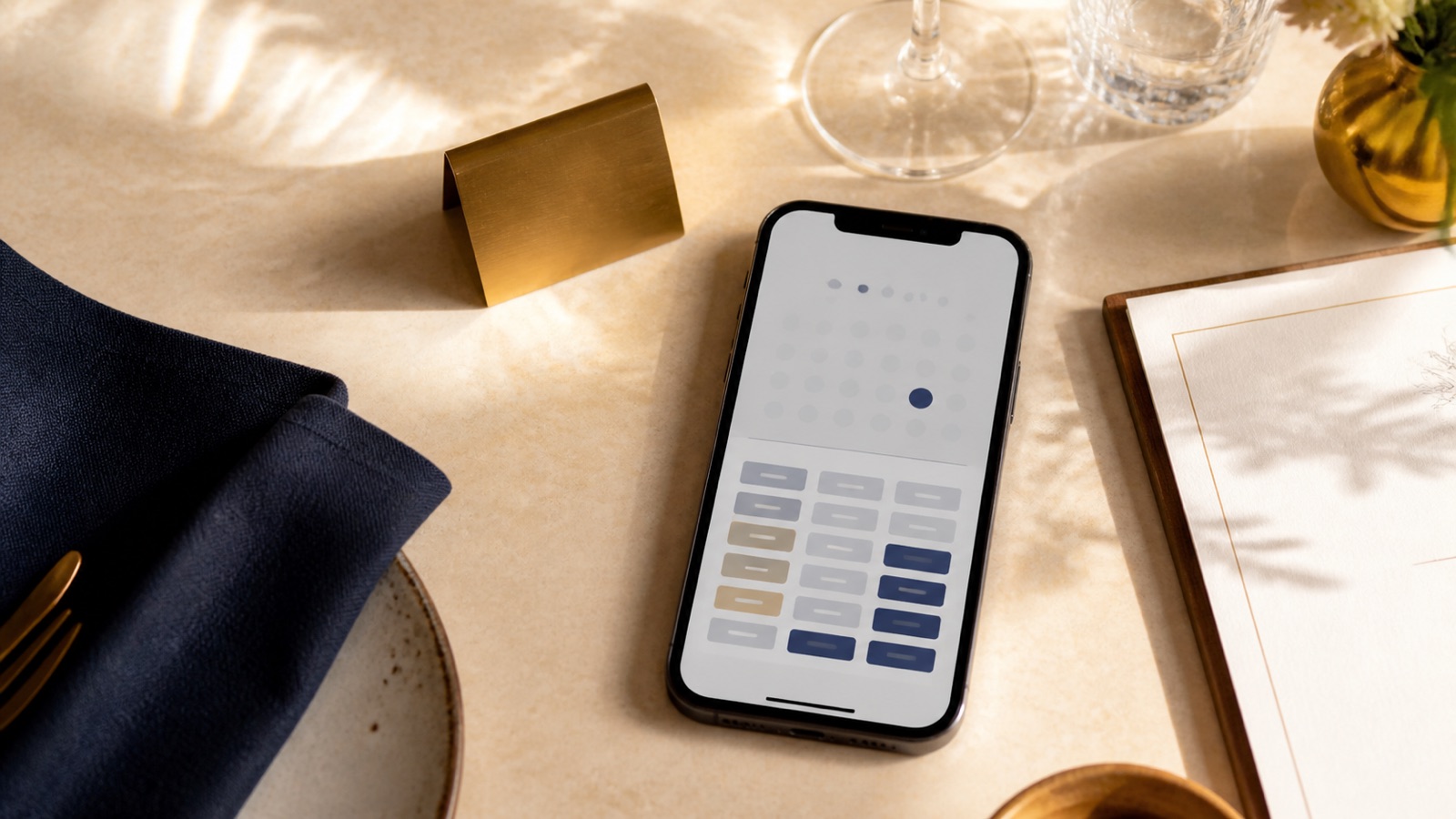
Use a booking widget or overlay when it loads quickly, fits the phone screen, keeps the venue and service clear, and lets a guest finish without fighting the page. Use a direct link when the embedded experience is slow, cramped, unreliable, or difficult for your team to maintain.
Both routes can work. The mistake is choosing by appearance alone. A polished calendar that fails on an older phone is worse than a plain, well labelled button that opens a dependable reservation page. Test the full path, then choose the simpler option that passes.
Do not replace a live reservation system with a general contact form. A form creates uncertainty about availability and confirmation. Keep the reservation platform as the source of truth, whether it appears inside the website or opens on its own page.
Understand the three booking paths
A direct link sends the guest to a reservation page hosted by the booking provider. An overlay opens the provider experience above your website after the guest taps a button. An embedded widget places the date, party size, time, or full booking flow inside your page.
The visual difference is easy to see. The operational difference matters more. Ask who controls availability, where confirmation happens, what loads when the provider is slow, and how the path behaves when your venue changes a service or reservation platform.
Official guidance from OpenTable and Resy confirms that website widgets are supported booking routes. Resy also provides platform specific installation guidance for several common website builders. That does not mean a widget is automatically the right choice for every site. It means owners can compare a supported embed with a clean external path instead of assuming one format is required.
When a widget is the better choice
A widget earns its place when it shortens the journey. A guest can see real availability without leaving the page, the venue name remains obvious, and the next step appears quickly after a tap. This can be useful when the booking decision depends on a simple date, party size, and time selection.
Choose the widget only after checking these points:
- The controls fit a narrow phone screen without clipped labels or sideways scrolling.
- The page remains readable while the widget loads, and the main booking action does not jump around.
- Keyboard focus, labels, contrast, and error messages remain usable for guests who do not navigate by touch alone.
- The widget identifies the correct venue, location, service, date, and party size before confirmation.
- Your team knows where the code came from and who can update or remove it.
An overlay can be a useful middle ground. It keeps the first page light and opens the reservation experience after a deliberate tap. Treat it like any other widget, though. Test closing it, returning to the website, rotating the phone, increasing text size, and recovering from an unavailable time.
When a direct link is the better choice
Use a direct link when the provider page is clearer or more stable than the embedded version. This is often the safer path for a simple website, a temporary launch, or a venue whose team needs one booking destination that can be checked without touching website code.
Write the button for the action, not the technology. “Book a table” is clearer than “Reservations.” If several services use different destinations, label them separately, such as “Book dinner,” “Book the tasting menu,” or “Enquire about groups.” Do not make the guest open a generic provider page and guess which location or experience applies.
A direct link does move the guest to another site. Reduce that uncertainty by placing the booking policy, deposit note, group size limit, and phone alternative before the button when those details affect the decision. Keep the explanation brief enough that the main action still feels immediate.
Build the page around the booking action
The surrounding page should answer the questions the booking interface cannot. Show the current menu or dining format, location, service times, accessibility information, group policy, and the best contact path for exceptions. If private dining follows a different process, separate it from standard table reservations.
Place the primary booking action where a phone visitor can find it early. Repeat it after decision making information when the page is long, but keep the label and destination consistent. Avoid presenting several equal buttons that lead to the same inventory.
If guests also find you through maps or local search, keep those booking destinations aligned with the website. Our guide to restaurant booking links on your website and Google explains how those channels should work together.
Run a real mobile booking test
Do not approve the setup from a desktop preview. Open the live page on a phone using mobile data and start as a first time guest. Test a date with availability and one without it. Try a small party and a group that reaches your online limit.
- EntryStart from the homepage, menu, contact page, and a search result.
- ClarityConfirm the button names the action and the correct venue.
- LoadWatch for blank space, delayed controls, layout movement, or a frozen overlay.
- SelectionChoose a date, party size, time, and any required seating option.
- RecoveryChange the date, handle no availability, go back, and close the experience.
- ConfirmationStop before a real reservation is placed, unless you use an approved test process.
Repeat the important checks after a website update, a reservation platform change, or a new service launch. For a broader phone review, use the free Restaurant Website Quick Score. It checks the booking path alongside the menu, location, contact, and other guest essentials.
Plan for reservation platform changes
A platform move can leave booking code in more places than expected. Before changing anything, list every booking button, overlay, widget, map listing, social profile, campaign page, QR code, and email link. Record the destination for each one.
Replace the website path in a controlled order, then test the public page. Remove retired scripts after the new route works. If an old reservation URL still receives traffic, ask the provider whether it can redirect or display a clear move notice. Do not assume a changed homepage button fixes links shared elsewhere.
Keep one owner for the final check. That person should confirm the correct inventory, venue, services, policies, and notification flow, then record the date and devices tested.
Owner decision checklist
- Does the widget make booking faster than a direct link on a real phone?
- Can guests understand the venue, service, and policies before they commit?
- Can they recover from no availability without becoming trapped?
- Does the page remain usable if the booking interface loads slowly or fails?
- Can your team update the path without creating different links across channels?
- Is there a clear alternative for groups, accessibility questions, or guests who need help?
If the widget passes, keep it. If the direct link passes more reliably, use the link without apology. Guests care about getting the right table with confidence, not whether the calendar technically lives inside your website.
Need a second set of eyes on the booking path?
The US$35 Website Check reviews your live mobile journey and gives you a short priority list for booking clarity, menu access, key venue details, and search basics. It can help you decide whether the widget needs attention or a direct link would be the cleaner fix.
See the Website CheckSources
- OpenTable Restaurant Support, install the reservation widget on a restaurant website
- Resy Help Desk, widget installation