
The short answer is to ask only what staff need to route and answer the enquiry
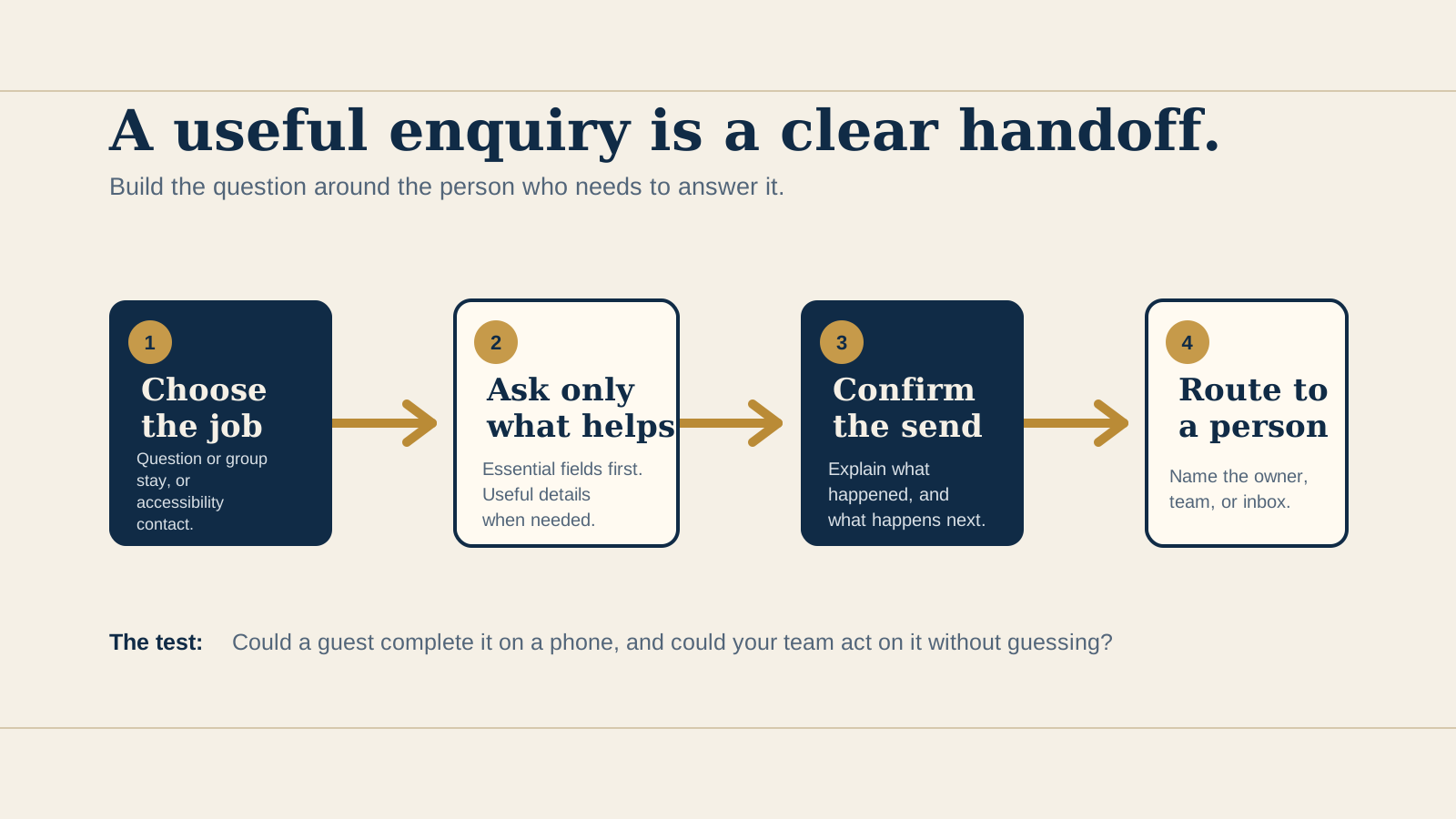
Start with the job the guest is trying to do. A person asking whether tonight's terrace is covered does not need the same path as an organiser planning a twenty person lunch, a traveller asking about a room, or someone checking an access detail before a visit.
W3C's forms guidance recommends simple, short forms that ask only for information needed to complete the task. That is useful operational advice too. Each required field should help someone reply, quote, check availability, or pass the enquiry on. If it does none of those things, remove it or make it optional.
Choose the exact enquiry job before choosing fields
Write the form's job in one sentence before opening a website builder. “Help the host answer a general question” is different from “give the events lead enough detail to decide whether a private dining request is feasible.” The second job needs more context, but it still does not need every possible preference up front.
- General question: give guests a short way to ask about hours, menu, lost property, or another question not answered elsewhere.
- Large group or private dining: collect date, approximate guest count, occasion or format, and a way to reply, then route it to the person who handles events.
- Boutique stay request: ask for intended dates, number of guests, room or access context that affects availability, and a reply method. Keep live availability and payment inside the booking system when one exists.
- Accessibility contact: offer a clear route for a guest to ask about the actual visit. Make the route easy to find, rather than asking them to explain a personal condition in a general field.
This is the distinction between a contact form and a full guest profile. The form begins a useful conversation. The team can gather more detail after it knows the request belongs with them.
Use minimum required fields, then add conditional fields only when they change the answer
For many general enquiries, name, a reply method, and the question are enough. A subject selector can help if it maps to a real inbox or person. For a private dining or stay enquiry, date and group or guest count may be essential because they determine whether the team can answer at all.
Conditional fields are details that appear only after a guest chooses a relevant path. For example, an event-date question can appear after “private dining,” or arrival time can appear after “boutique stay.” This is usually clearer than one giant form containing every question for every guest. It also gives staff a shorter, more recognisable handoff without pretending that a shorter form always produces a particular result.
Mark required fields in both the instruction and the field label. Explain any format, such as a date or phone number, before the guest sends. Keep open questions purposeful. “Tell us anything else that will help” is a better optional field than a vague box that forces a guest to repeat information already collected.
Choose a form when it creates a better handoff, and keep a direct fallback when it does not
A form is useful when the venue needs a few consistent details to route, quote, or check something before replying. It can reduce back and forth for a private event or stay request. A direct email address or phone number can be better for a simple question, an urgent same-day issue, or a guest who does not want to complete a form.
Use both when the form provides value but a guest may reasonably need another route. Put the fallback near the form and say when it is appropriate, for example “For a same-day change, call the restaurant.” Do not hide the phone number behind a form if the team expects calls for urgent service matters.
There is no single best route for every venue. Decide from the guest's urgency, the information a staff member needs, and whether someone is ready to receive the enquiry.
Make the form easy to understand and use on a keyboard and phone
Every control needs a clear label that remains available after typing begins. W3C recommends associating the label and control, commonly with a label's for value matching the field's id. Placeholder examples can help, but they disappear as someone types and are not a replacement for labels.
Put overall instructions before the form, including what is required, any expected format, and where a guest can get help. Put field-specific instructions close to the relevant label. Use the right native field where it helps on a phone, such as email, telephone, date, or number, but do not use a numeric input where a guest needs to enter a name or reference.
Then use the form without a mouse. The focus should be visible and move through fields, choices, error messages, submit button, and fallback contact in a sensible order. On a phone, labels, choices, and submit controls should remain readable and easy to tap without sideways page scrolling.
Explain errors clearly, then make the successful send visible
If a guest misses a required field or enters an unusable email address, name the field and explain how to fix it. W3C's notification guidance recommends an error summary near the top that identifies each affected control, describes the problem, and links to it. Keep correctly entered information where practical, so the guest is not asked to start again because of one mistake.
Do not rely only on colour, an icon, or a generic “something went wrong.” A visible message in words helps everyone understand what happened. If the form updates without loading a new page, make sure the change is announced in a way assistive technology can recognise.
After a successful send, show a clear success state: what was sent, who will receive it, what happens next, and a fallback contact. Promise a response window only if the venue can reliably keep it. If the request is time sensitive, say what a guest should do instead of waiting for an inbox reply.
Collect less, protect it, and plan the staff handoff
Collect only the information needed for this enquiry. A first contact form is not a place to request payment details, copies of identity documents, or unnecessary sensitive information. For an access request, let the guest ask what they need without requiring more personal detail than is necessary to answer.
Before publishing, decide who receives each form type, whether the message lands in a shared inbox or a vendor's system, who can access it, how long it is retained, and how a guest can ask for deletion. Keep access limited to people who need it, remove access when roles change, and document what the venue will do if information is exposed or sent to the wrong place.
The FTC's US business guidance on protecting personal information is a practical prompt to take reasonable safeguards, know where data lives, and dispose of information securely. It is not a statement that one law or one process applies to every venue. Where legal duties are unclear, get advice that fits the venue's location and actual setup.
Match the fields to the enquiry and the owner workflow
| Enquiry type | Essential fields | Optional fields | Owner workflow |
|---|---|---|---|
| General question | Name, email or phone, question | Topic selector, preferred contact method | Host or manager checks shared inbox and replies or forwards. |
| Large group or private dining | Name, reply method, preferred date, guest count, request | Time range, occasion, budget range, menu interest | Events lead checks date and capacity, then replies with the next step. |
| Boutique stay request | Name, reply method, intended dates, number of guests | Room preference, arrival context, question | Reservations checks the correct availability route and responds. |
| Accessibility contact | Reply method, question or visit context | Visit date, preferred reply method | Named manager checks the actual venue detail and replies without assumptions. |
Run this mobile test before you publish
- Open each enquiry route on a real phone and identify its job before reading the first field.
- Complete one realistic request using only the keyboard or phone controls, without a mouse.
- Check that every field has a visible label, required fields are clear, and instructions remain available while entering answers.
- Leave one required field blank and enter one invalid value. Confirm that the correction is clear and correct entries stay in place.
- Send a safe test enquiry, then read the success state and confirm the message reaches the named inbox or owner.
- Check the stated response expectation against the actual team schedule. Remove it if the venue cannot reliably keep it.
- Use the email or phone fallback, and make sure it reaches the right person too.
- Review the inbox recipient, vendor access, retention, and deletion route after the test.
Start with the free Restaurant Website Quick Score
The free Restaurant Website Quick Score checks nine guest essentials and returns three practical priorities. Use it to see whether guests can find the contact route, understand the next step, and reach the wider menu, location, or booking information that may answer their question sooner.
Want a practical review of the current contact journey?
The US$35 Website Check reviews the live mobile journey, menu, booking or ordering path, essential venue details, visual clarity, and search basics. It can help you spot whether the contact route is missing, too broad, hard to use, or disconnected from the team that needs to answer it.
Get the US$35 Website CheckSources
- W3C Web Accessibility Initiative, Forms Tutorial
- W3C Web Accessibility Initiative, Labeling Controls
- W3C Web Accessibility Initiative, Form Instructions
- W3C Web Accessibility Initiative, User Notification
- W3C, WCAG 2.2, Error Identification
- Federal Trade Commission, Protecting Personal Information: A Guide for Business
Official guidance checked October 13, 2026. This article is practical website guidance, not legal advice.